# NextCloud-Upload-Ordner freigeben

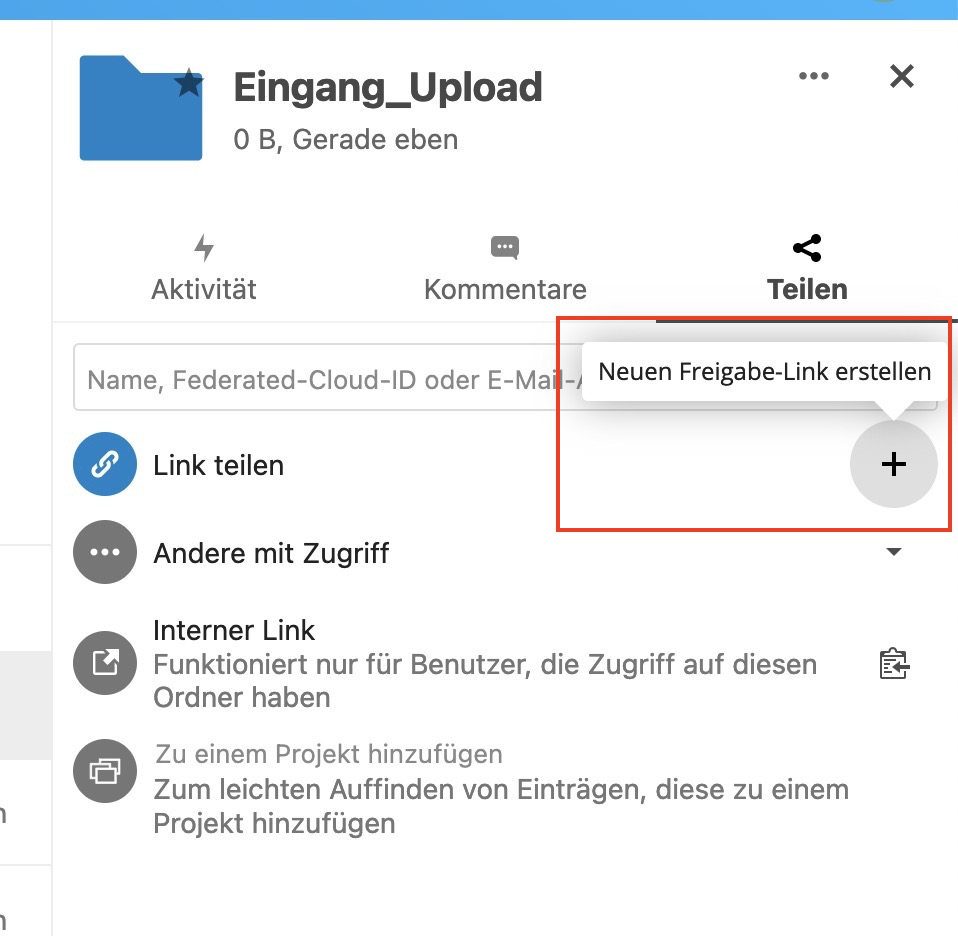
Um einen Ordner zum Hochladen von Dateien für Externe ohne Benutzer freizugeben legen Sie einen Ordner an beliebiger Stelle an. Klicken Sie den Ordner an, dann klicken Sie auf das Freigabe-Icon (rot markiert). Im Freigabe-Menü (rechts im Bild) erstellen Sie einen neuen Freigabe-Link:

[![image-1632818371617.png](https://wiki.taenzer.hosting/uploads/images/gallery/2021-09/scaled-1680-/image-1632818371617.png)](https://wiki.taenzer.hosting/uploads/images/gallery/2021-09/image-1632818371617.png)
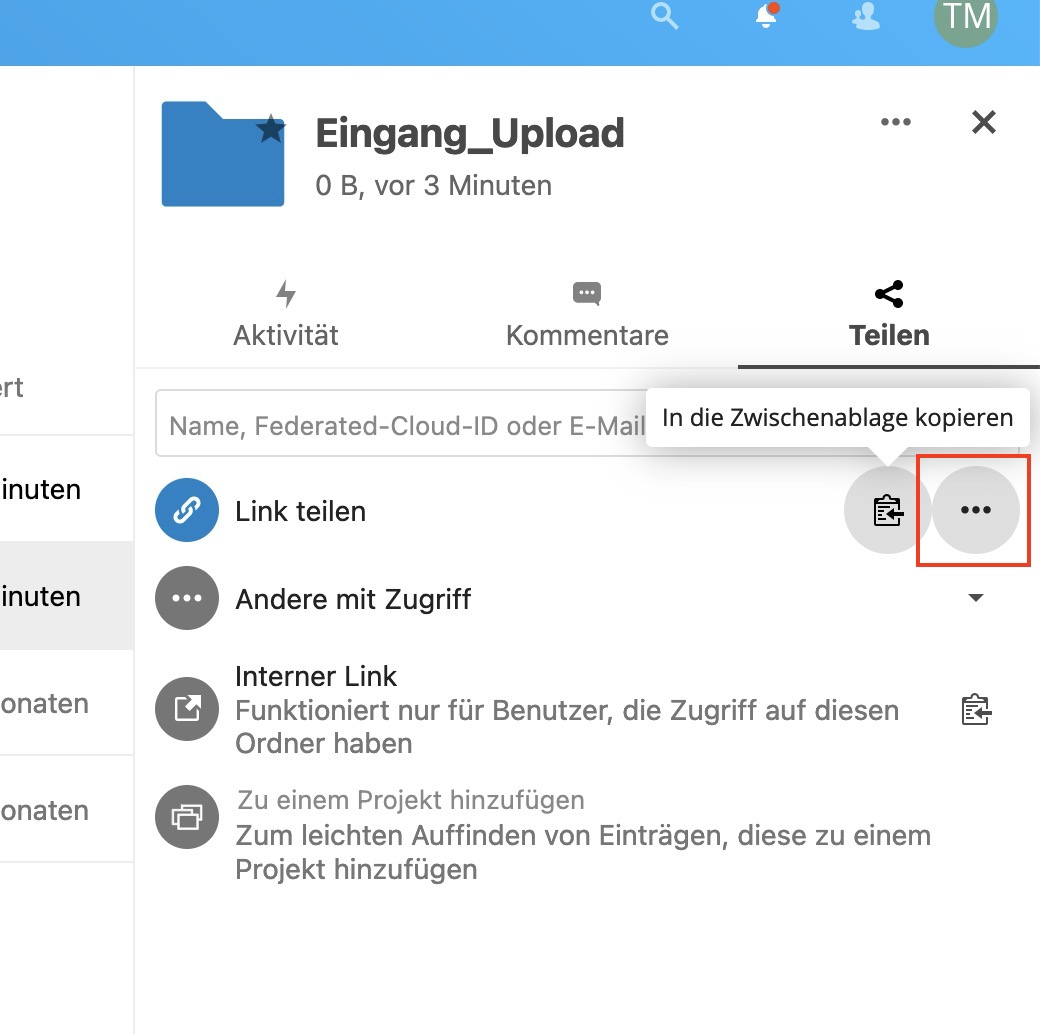
<span style="caret-color: #000000; color: #000000; font-family: sans-serif; font-size: 13px; font-style: normal; font-variant-caps: normal; font-weight: normal; letter-spacing: normal; orphans: auto; text-align: start; text-indent: 0px; text-transform: none; white-space: normal; widows: auto; word-spacing: 0px; -webkit-text-size-adjust: auto; -webkit-text-stroke-width: 0px; text-decoration: none; display: inline !important; float: none;">Dann klicken Sie im Menü rechts auf das "+" und erstellen eine neue Freigabe:</span>

[![image-1632818400544.png](https://wiki.taenzer.hosting/uploads/images/gallery/2021-09/scaled-1680-/image-1632818400544.png)](https://wiki.taenzer.hosting/uploads/images/gallery/2021-09/image-1632818400544.png)

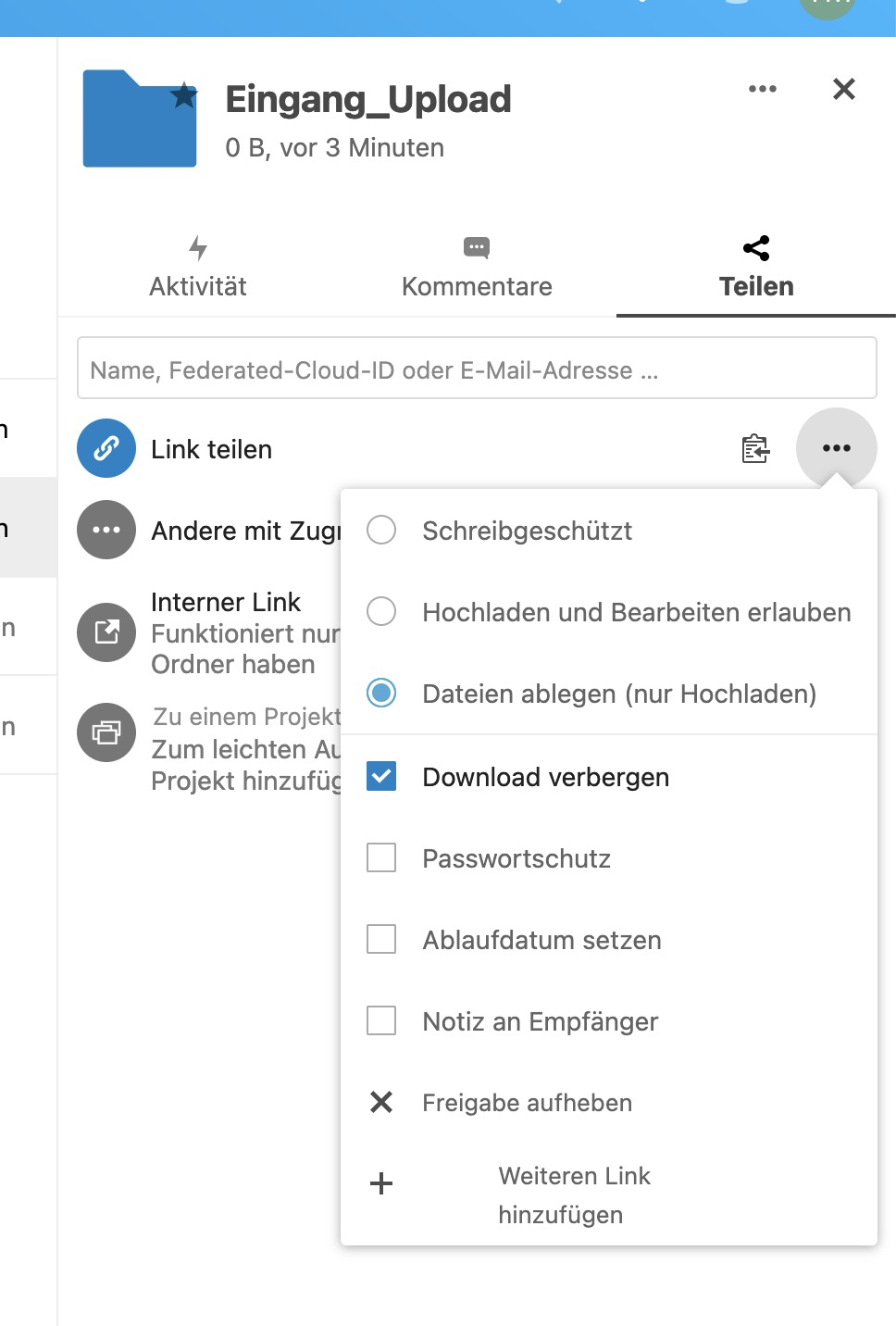
<span style="caret-color: #000000; color: #000000; font-family: sans-serif; font-size: 13px; font-style: normal; font-variant-caps: normal; font-weight: normal; letter-spacing: normal; orphans: auto; text-align: start; text-indent: 0px; text-transform: none; white-space: normal; widows: auto; word-spacing: 0px; -webkit-text-size-adjust: auto; -webkit-text-stroke-width: 0px; text-decoration: none; display: inline !important; float: none;">Danach können Sie im Freigabe-Menü einstellen, dass nur Uploads und keine Downloads möglich sind. </span>

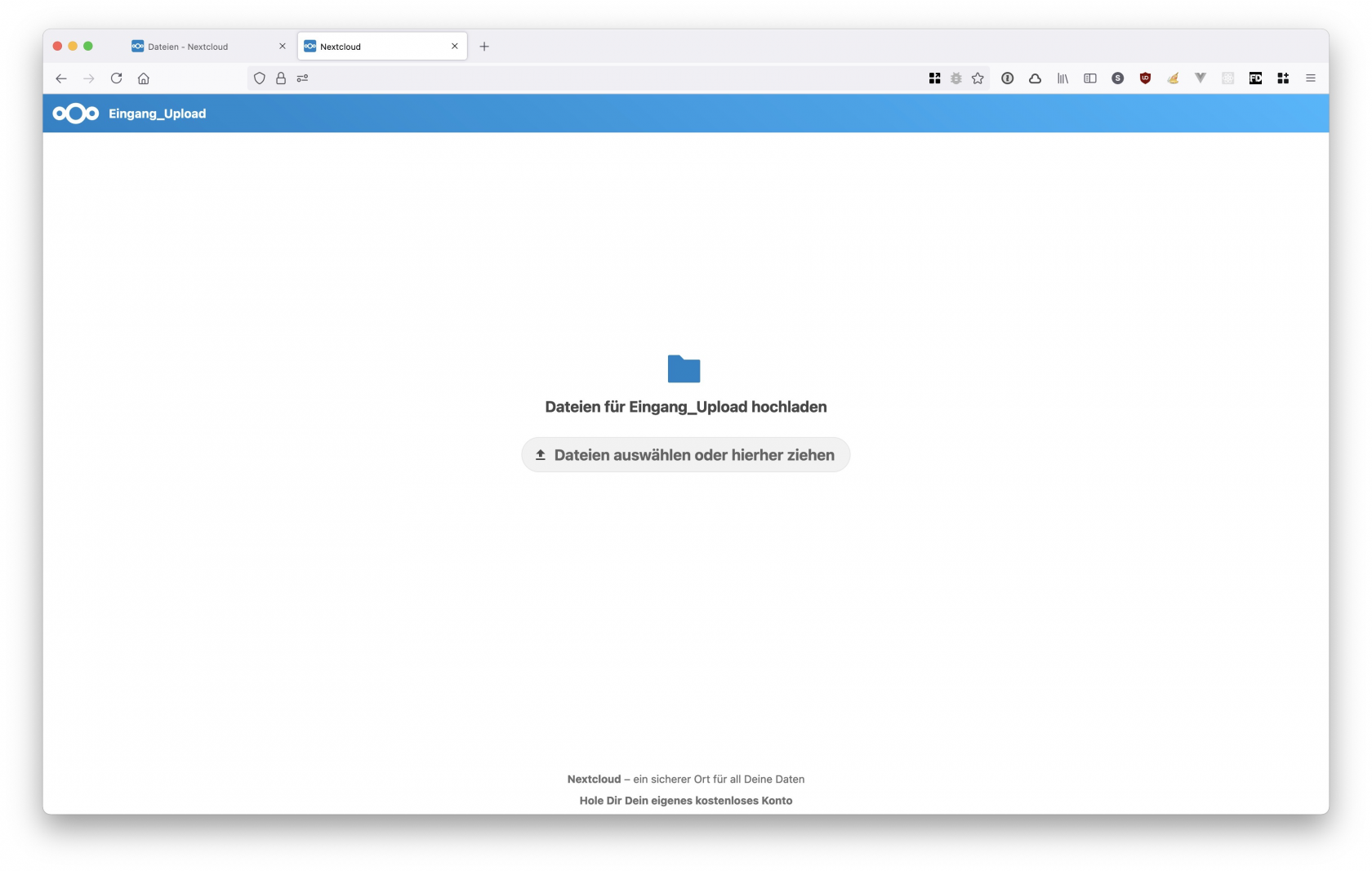
<span style="caret-color: #000000; color: #000000; font-family: sans-serif; font-size: 13px; font-style: normal; font-variant-caps: normal; font-weight: normal; letter-spacing: normal; orphans: auto; text-align: start; text-indent: 0px; text-transform: none; white-space: normal; widows: auto; word-spacing: 0px; -webkit-text-size-adjust: auto; -webkit-text-stroke-width: 0px; text-decoration: none; display: inline !important; float: none;">Das Menü rufen Sie über den Button mit den "..." auf:</span>

[![image-1632818448037.png](https://wiki.taenzer.hosting/uploads/images/gallery/2021-09/scaled-1680-/image-1632818448037.png)](https://wiki.taenzer.hosting/uploads/images/gallery/2021-09/image-1632818448037.png)

Hier stellen Sie alles wie folgt ein:

- Dateien ablegen (nur hochladen)
- Download verbergen

[![image-1632818467739.png](https://wiki.taenzer.hosting/uploads/images/gallery/2021-09/scaled-1680-/image-1632818467739.png)](https://wiki.taenzer.hosting/uploads/images/gallery/2021-09/image-1632818467739.png)
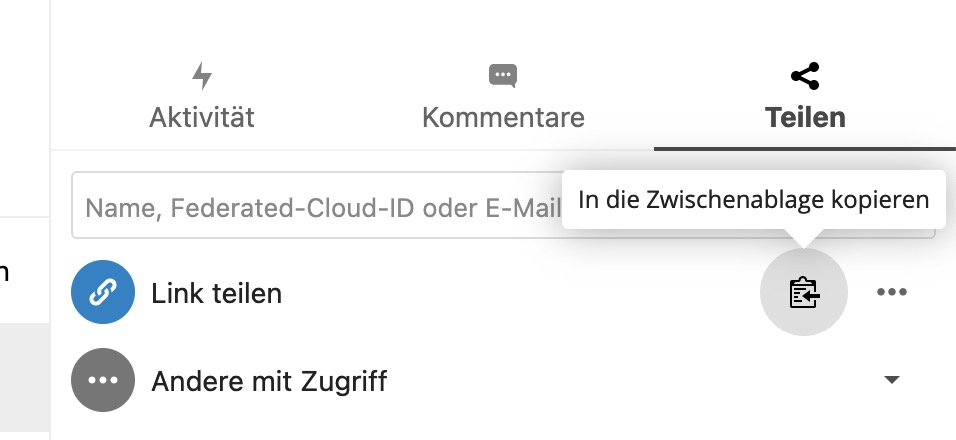
Danach kopieren Sie den Freigabe-Link in die Zwischenablage:

[![image-1632818505381.png](https://wiki.taenzer.hosting/uploads/images/gallery/2021-09/scaled-1680-/image-1632818505381.png)](https://wiki.taenzer.hosting/uploads/images/gallery/2021-09/image-1632818505381.png)
Sie erhalten dann einen Link wie diesen:

[https://cloud.meinedomain.de/s/bLMRsoxoaGzWFog](#)

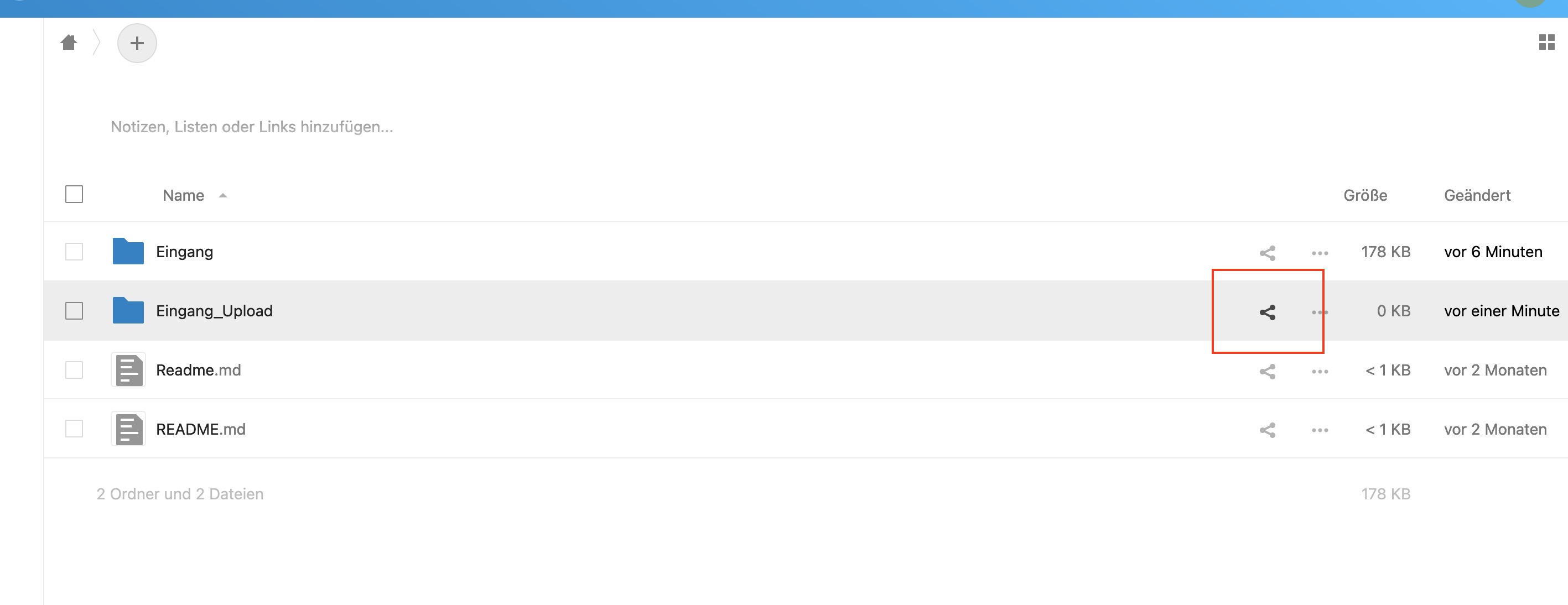
Mit diesem Link können Ihre Kunden Dateien in den Ordner hochladen, aber nicht sehen, was sich darin befindet und auch nichts herunterladen:

[![image-1632818591248.png](https://wiki.taenzer.hosting/uploads/images/gallery/2021-09/scaled-1680-/image-1632818591248.png)](https://wiki.taenzer.hosting/uploads/images/gallery/2021-09/image-1632818591248.png)